프로그램 4주차 2022/03/24~ 2022/04/03 리액트 주특기 숙련

과제 요구사항 

주특기 숙련 개인과제

게시글 페이지 만들기

게시글 목록을 화면에 그리기 (각각 뷰는 카드 뷰로 만들기)

게시글 내의 예시는 파란 글씨로 보여주기

게시글 목록을 리덕스에서 관리하기

게시글 목록을 파이어스토어에서 가져오기


게시글 작성 페이지

게시글 작성에 필요한 input 3개를 ref로 관리하기

작성한 게시글을 리덕스 내 게시글 목록에 추가하기

게시글 목록을 파이어스토어에 저장하기


추가로 해보면 좋은 기능

무한 스크롤 붙이기

게시글 수정해보기


구현된 페이지와 기능들


라우터 시켜주는곳 App.js

내 코드

더보기
// 연결값 불러오는 부분
import React from "react";
import styled from "styled-components";
import { Route, Switch } from "react-router-dom";
import { useDispatch } from "react-redux";
import { loadTextFB } from "./redux/modules/text";
import MainText from "./pages/MainText";
import DetailPage from "./pages/DeatailPage";
import NotFound from "./pages/NotFound";
import PlusPage from "./pages/PlusPages";


//실행하는 함수
function App() {
  const [list, setList] = React.useState([]); // 현재상태
  console.log(1111, list);
  const dispatch = useDispatch(); //사용되는 입력값 가져오기
  console.log(111, list);


  React.useEffect(() => {
    dispatch(loadTextFB());
  }); // 화면 loadTextFB라는 값을 렌더해줌
  return (
    <div>
      <Container>
        <Title>내 메모장</Title>
        <Switch>
          <Route path="/" exact>
            <MainText list={list} />
          </Route>
          <Route path="/plus" exact>
            <PlusPage list={list} />
          </Route>
          <Route exact path="/detail/:index" component={DetailPage} />
          <Route component={NotFound} />
        </Switch>
      </Container>
    </div>
  );
}


const Container = styled.div`
  width: 100%;
  height: 100%;
  margin-top: 10px;
  border-radius: 5px;
  background-color: wheat;
`;


const Title = styled.div`
  color: white;
  width: 100%;
  height: 80px;
  text-align: center;
  font-size: 50px;
  font-weight: bold;
  border-bottom: 5px solid white;
`;


export default App;


1. 파이어베이스에 연결되어있는 모든 데이터를 불러오는 MainText 

2. 파이어베이스에 연결되어 스토어를 통해 데이터를 추가하는 공간 PlusPage 

3. 파이어베이스에 연결되어 스토어를 통해 유저가 클릭한 데이터를 가져와 수정작업과 삭제기능이 있는 DetailPage

4. url 주소를 잘못 입력시에 나타나는 NotFound


파이어베이스 개인정보를 가지고있는  firebase.js

내 코드

더보기
import { initializeApp } from "firebase/app";
import { getFirestore } from "firebase/firestore";


const firebaseConfig = {
  apiKey: "",
  authDomain: "",
  projectId: "",
  storageBucket: "",
  messagingSenderId: "",
  appId: "",
  measurementId: "",
}; // 파이어 베이스 개인정보
initializeApp(firebaseConfig);


export const db = getFirestore(); // 변수 db에 파이어베이스 연결


1. 파이어베이스 개인정보에 관해선 파이어베이스에서 문서에 나와있음

2. 파이어베이스를 초기화하는 기능을 넣음

3. 데이터베이스를 사용 할수있게 export 해줌

파이어베이스와 내 리듀서와 연결해주는 configStore.js

내 코드

더보기
import { createStore, combineReducers, applyMiddleware, compose } from "redux";
import text from "./modules/text";
import thunk from "redux-thunk";


// root 리듀서를 만들어줍니다.
// 나중에 리듀서를 여러개 만들게 되면 여기에 하나씩 추가해주는 거예요!
const middlewares = [thunk];
const rootReducer = combineReducers({ text });
const enhancer = applyMiddleware(...middlewares);
const store = createStore(rootReducer, enhancer);
export default store;
 

적용된 리듀서와 CURD 가 있는 text.js

내 코드

더보기
import { db } from "../../firebase";


import {
  collection,
  getDoc,
  getDocs,
  addDoc,
  updateDoc,
  doc,
  deleteDoc,
} from "firebase/firestore";


const LOAD = "text/LOAD";
const CREATE = "text/CREATE";
const UPDATE = "text/UPDATE";
const DELETE = "text/DELETE";


const initialState = {
  list: [],
};
export function loadText(text_list) {
  return { type: LOAD, text_list };
}


export function createText(text) {
  return { type: CREATE, text: text };
}
export function updateText(textId, textObject) {
  return { type: UPDATE, textId, textObject };
}


export function deleteText(text_index) {
  return { type: DELETE, text_index };
}


// middlewares


export const loadTextFB = () => {
  return async function (dispatch) {
    const text_data = await getDocs(collection(db, "mytext"));


    let text_list = [];


    text_data.forEach((b) => {
      text_list.push({ id: b.id, ...b.data() });
      console.log(55, text_list);
    });
    dispatch(loadText(text_list));
  };
};


export const addTextFB = (text) => {
  return async function (dispatch) {
    const docRef = await addDoc(collection(db, "mytext"), text);
    const _text = await getDoc(docRef);
    const text_data = { id: _text.id, ..._text.data() };
    dispatch(createText(text_data));
  };
};


export const updateTextFB = (textId, textObject) => {
  return async function (dispatch, getState) {
    const docRef = doc(db, "mytext", textId);
    await updateDoc(docRef, textObject);


    dispatch(updateText(textId, textObject));
  };
};


export const deleteTextFB = (text_id) => {
  return async function (dispatch, getState) {
    if (!text_id) {
      window.alert("아이디가 없음!");
      return;
    }
    const docRef = doc(db, "mytext", text_id);
    await deleteDoc(docRef);


    const _text_list = getState().text.list;
    const text_index = _text_list.findIndex((b) => {
      return b.id === text_id;
    });
    dispatch(deleteText(text_index));
  };
};


export default function reducer(state = initialState, action = {}) {
  switch (action.type) {
    case LOAD: {
      return { list: action.text_list };
    }
    case CREATE: {
      console.log("이제 값을 바꿀거야!");
      const new_text_list = [...state.list, action.text];
      return { list: new_text_list };
    }


    case UPDATE: {
      const new_text_list = state.list.map((item) => {
        if (action.textId === item.id) {
          return {
            ...item,
            word: action.textObject.word,
            explanation: action.textObject.explanation,
            example: action.textObject.example,
          };
        } else {
          return item;
        }
      });
      return { list: new_text_list };
    }
    case DELETE: {
      const new_text_list = state.list.filter((l, idx) => {
        return parseInt(action.text_index) !== idx;
      });
      return { list: new_text_list };
    }


    default:
      return state;
  }
}


1. import 로 db와 연결하기

2. 액션타입 만들기  LOAD,CREATE,UPDATE,DELETE

3. 액션 생성함수 만들기 (상태에 변화가 필요할 때(가지고 있는 데이터를 변경할 때) 발생하는 것)

loadText, createText, updateText, deleteText, 

4. dispatch 을 활용해서 엑션을 db와 연동해서 실행시키는 함수를 생성 ( 액션을 만들기 위해 사용합니다. )

loadTextFB  , addTextFB  , updateTextFB  , deleteTextFB 

5. 리듀서를 만듬 리덕스에 저장된 상태(=데이터)를 변경하는 함수입니다.

기본값을 가져와 화면에 액션상태에따라 그려줌

라우터로 연결하여 메인화면에 나오는 MainText.js

내 코드

더보기
import React from "react";
import styled from "styled-components";
import { useSelector } from "react-redux";
import { useHistory } from "react-router-dom";
import { Link } from "react-router-dom";


const MainText = (props) => {
  let history = useHistory();
  const item = useSelector((state) => state.text.list);


  return (
    <MainList>
      <ListStyle>
        {item.map((item, index) => {
          return (
            <ListPage key={index}>
              <ItemStyles>
                단어:
                <ItemStyle>{item.word}</ItemStyle>
                <Icon
                  className="list_item"
                  key={index}
                  onClick={() => {
                    history.push("/detail/" + item.id);
                  }}
                >
                  ✍️
                </Icon>
              </ItemStyles>
              <ItemStyles>
                설명:
                <ItemStyle
                  className="list_item"
                  key={index}
                  onClick={() => {
                    history.push("/detail/" + item.id);
                  }}
                >
                  {item.explanation}
                </ItemStyle>
              </ItemStyles>
              <ItemStyle3>
                예시:
                <ItemStyle
                  className="list_item"
                  key={index}
                  onClick={() => {
                    history.push("/detail/" + item.id);
                  }}
                >
                  {item.example}
                </ItemStyle>
              </ItemStyle3>
            </ListPage>
          );
        })}
      </ListStyle>
      <Link to="/plus">
        <Pluss>눌러!</Pluss>
      </Link>
    </MainList>
  );
};
const MainList = styled.div`
  overflow: auto;
`;
const ListStyle = styled.div`
  display: flex;
  flex-direction: row;
  height: 400px;
  border-bottom: 5px solid white;
  position: relative;
`;
const ListPage = styled.div`
  width: 250px;
  height: 330px;
  margin: 50px 20px 10px 20px;
  padding-top: 10px;
  border-radius: 30px;
  display: flex;
  flex-direction: column;
  justify-content: center;
  align-items: center;
  background-color: gold;
  position: relative;
`;


const ItemStyle = styled.div`
  width: 150px;
  padding: 16px;
  margin: 8px;
  border-radius: 20px;
  background-color: gray;
`;


const ItemStyles = styled.div`
  font-weight: bold;
  color: white;
`;
const ItemStyle3 = styled.div`
  font-weight: bold;
  color: cornflowerblue;
`;


const Icon = styled.button`
  position: absolute;
  top: 5px;
  right: 20px;
  font-size: 25px;
  background-color: aliceblue;
  border: 5px solid white;
  border-radius: 25px;
  margin-top: 5px;
`;


const Pluss = styled.button`
  position: absolute;
  right: 35px;
  bottom: 120px;
  width: 80px;
  height: 80px;
  border-radius: 40px;
  border: 5px solid white;
  background-color: aliceblue;
  font-weight: bold;
  font-size: 20px;
`;
export default MainText;


1. 파이어 베이스 로 연결된 리듀서에서 보내준 데이터를 받아옴 ( useSelector )

2. 화면에 맵함수를 활용하여 리스트 전체를 반복문을 돌려 정보를 가지고있는 text를 list로 만듬 ( item.map )

3. 여러가지의 타입을 만들어 데이터베이스에 저장되있는 해당하는 값들을 가져와 화면에 뿌러줌 

4. 화면을 꾸며주기위해 styled-components 를 활용함

5. 클릭하여 추가하기로 이동하는 버튼을 만들어놓음

6. 각 리스트에 이동할수있도록 아이콘이 붙은 버튼을 만들어놓음

라우터로 연결하여 메인페이지에서 버튼을 클릭시 목록을 추가하는 PlusPages.js

내 코드

더보기
import React, { useRef } from "react";
import styled from "styled-components";
import { useDispatch } from "react-redux";
import { loadTextFB, addTextFB } from "../redux/modules/text";
import { useHistory } from "react-router-dom";


function PlusPage() {
  const text1 = useRef(null);
  const text2 = useRef(null);
  const text3 = useRef(null);
  const dispatch = useDispatch();
  const history = useHistory();
  const my_wrap = React.useRef(null);
 
  React.useEffect(() => {
    dispatch(loadTextFB());
  });


  const addTextList = () => {
    dispatch(
      addTextFB({
        word: text1.current.value,
        explanation: text2.current.value,
        example: text3.current.value,
      }),
      history.goBack()
    );
  };


  window.setTimeout(() => {
    console.log(my_wrap);
  }, 5000);


  return (
    <ContentsMain>
      <SubName>단어 추가하기!</SubName>
      <Input>
        <NameList>
          <KrName>단어</KrName>
          <TextWrite type="text" ref={text1} />
        </NameList>{" "}
        <NameList>
          <KrName2>설명</KrName2>
          <TextWrite type="text" ref={text2} />
        </NameList>
        <NameList>
          <KrName3>예시</KrName3>
          <TextWrite type="text" ref={text3} />
        </NameList>
      </Input>
      <Pluss onClick={addTextList}>추가하기</Pluss>
    </ContentsMain>
  );
}
const ContentsMain = styled.div`
  display: flex;
  flex-direction: column;
  justify-content: center;
  align-items: center;
`;


const SubName = styled.div`
  color: blueviolet;
  font-size: 30px;
  font-weight: bold;
  margin: 20px 0px;
`;
const Input = styled.div`
  width: 280px;
  height: 300px;
  background-color: #fff;
  padding: 16px;
  margin: 20px auto;
  border-radius: 30px;
  border: 1px solid #ddd;
  position: relative;
  background-color: gold;
`;


const Pluss = styled.button`
  width: 80px;
  height: 80px;
  border-radius: 40px;
  border: 5px solid white;
  background-color: aliceblue;
  position: absolute;
  right: 35px;
  bottom: 120px;
`;


const NameList = styled.div`
  display: flex;
  flex-direction: column;
  justify-content: center;
  align-items: center;
  color: blueviolet;
  font-size: 25px;
  font-weight: 500;
`;
const TextWrite = styled.input`
  margin: 20px 0px;
  width: 200px;
  height: 20px;
`;


const KrName = styled.div``;
const KrName2 = styled.div``;
const KrName3 = styled.div``;
export default PlusPage;


1. 데이터를 db에 추가할수있는 함수들을 import함 ( useDispatch , loadTextFB, addTextFB )

2. 사용자가 클릭하여 입력값을 가져올수있는 history  사용 ( useHistory 와 useRef를 활용  )

3.  버튼을 넣고 이 버튼을 클릭시 addTextList 를 호출하게됨

4.  사용자가 원하는 화면에 값을 입력시 useRef를 이용하여 addTextFB에 current.value 로 값을 가져올수있음

5. 추가시 useEffect를 활용하여 loadTextFB를 불러 화면을 새로 그려줌 


라우터로 연결하여 메인페이지에서 버튼을 클릭시 수정과 삭제가되는 DeatailPage.js

내 코드

더보기
import React, { useRef } from "react";
import { useParams, useHistory } from "react-router-dom";
import { useDispatch, useSelector } from "react-redux";
import { deleteTextFB, updateTextFB } from "../redux/modules/text";
import styled from "styled-components";


const DetailPage = (props) => {
  const dispatch = useDispatch();
  const history = useHistory();
  const params = useParams();
  const text_index = params.index;
  const text_list = useSelector((state) => state.text.list);
  const text1 = useRef(null);
  const text2 = useRef(null);
  const text3 = useRef(null);
  const upTextList = () => {
    dispatch(
      updateTextFB(text_index, {
        text: text1.current.value,
        explanation: text2.current.value,
        example: text3.current.value,
      })
    );


    history.goBack();
  };


  return (
    <ContentsMain>
      {text_list.map((item, index) => {
        if (item.id === text_index)
          return (
            <SubList key={text_index}>
              <ContentsList>
                <BeforeList>{item.word}</BeforeList>
                <TodayList>
                  <NameList>
                    <KrName>단어</KrName>
                    <EgName>word</EgName>
                  </NameList>
                  <CorrectionList type="text" ref={text1} />
                </TodayList>
              </ContentsList>
              <ContentsList>
                <BeforeList>{item.explanation}</BeforeList>
                <TodayList>
                  <NameList>
                    <KrName>설명</KrName>
                    <EgName>explanation</EgName>
                  </NameList>
                  <CorrectionList2 type="text" ref={text2} />
                </TodayList>
              </ContentsList>


              <ContentsList>
                <BeforeList>{item.example}</BeforeList>
                <TodayList>
                  <NameList>
                    <KrName>예시</KrName>
                    <EgName>example</EgName>
                  </NameList>
                  <CorrectionList3 type="text" ref={text3} />
                </TodayList>
              </ContentsList>
              <div>
                <ClickBtn onClick={upTextList}>완료하기</ClickBtn>
                <ClickBtn2
                  onClick={() => {
                    dispatch(deleteTextFB(text_index));
                    history.goBack();
                  }}
                >
                  삭제하기
                </ClickBtn2>
              </div>
            </SubList>
          );
      })}
    </ContentsMain>
  );
};


export default DetailPage;


const ContentsMain = styled.div`
  display: flex;
  justify-content: center;
  align-items: center;
`;


const SubList = styled.div`
  width: 300px;
  height: 500px;
  display: flex;
  flex-direction: column;
  justify-content: center;
  align-items: center;
`;


const ContentsList = styled.div`
  margin: 10px 0px;
  position: relative;
`;
const BeforeList = styled.div`
  font-size: 30px;
  font-weight: bold;
  color: blueviolet;
  display: flex;
  justify-content: center;
  margin-bottom: 20px;
`;


const TodayList = styled.div`
  display: flex;
  flex-direction: row;
  justify-content: center;
  align-items: center;
  margin-top: 10px;
`;
const NameList = styled.div`
  display: flex;
  flex-direction: column;
  justify-content: center;
  align-items: center;
  color: blueviolet;
  margin-right: 30px;
  font-size: 15px;
  font-weight: 500;
`;
const KrName = styled.div`
  margin-bottom: 10px;
`;
const EgName = styled.div``;


const CorrectionList = styled.input`
  width: 150px;
  height: 30px;
  margin-left: 30px;
`;
const CorrectionList2 = styled.input`
  width: 150px;
  height: 30px;
  margin-left: 10px;
  margin-right: 20px;
`;
const CorrectionList3 = styled.input`
  width: 150px;
  height: 30px;
  margin-left: 23px;
`;


const ClickBtn = styled.button`
  margin: 10px 20px;
  width: 80px;
  height: 80px;
  border-radius: 40px;
  border: 5px solid white;
  background-color: aliceblue;
  position: absolute;
  bottom: 120px;
  right: 100px;
`;
const ClickBtn2 = styled.button`
  margin: 10px 20px;
  width: 80px;
  height: 80px;
  border-radius: 40px;
  border: 5px solid white;
  background-color: aliceblue;
  position: absolute;
  bottom: 120px;
  right: 5px;
`;


1.  db에있는 데이터를 변경하고 삭제하는  함수들을 import함 ( useDispatch , deleteTextFB, updateTextFB )

2. 사용자가 클릭한 정보를 가져오는 history 와 useRef , useParams를 사용 ( useHistory , useRef , useParams )

3.  각각의 버튼을 넣고 이 버튼을 클릭시 deleteTextFB 와 updateTextFB 를 불러와 바꾸거나 지움

4. 사용자가 클릭한 index( id ) 를 불러와 정보를 수정

5. history.goback 를 활용해 이전에 그려놓은 데이터로 이동


페이지 이동 시 없는 아이디 값으로로 이동 시 나오는 화면 NotFound.js

내 코드

더보기
import React from "react";
import { useHistory } from "react-router-dom";


const NotFound = (props) => {
  const history = useHistory();
  return (
    <div>
      <h1>주소가 올바르지 않아요!</h1>
      <button
        onClick={() => {
          history.goBack();
        }}
      >
        뒤로가기
      </button>
    </div>
  );
};
export default NotFound;

1. props 로 받아온 주소를 확인하여 주소가 올바르지않으면 h1을 보여줌


나의 생각

리덕스를 사용해서 처음 페이지를 만드는 한주였습니다

조금더 공부가 필요했지만 단계가 있다는것을 알게되었고 정보를 받아오고 표현하는 방법에 대해 배운것 같습니다


이 기간중 배운것


1. redux 사용방법

2. params 와 history , useRef 를 활용하여 클릭한 원하는 페이지로 이동하는방법

3. db(firebase) 를 활용하여 데이터를 가져오고 보내는 방법


앞으로의 필요한 점


1. 다른 방식 코드의 사용법

2. 자바스크립트 함수 사용법

3. 코드를 간결하게 정리하는 법

4. redux 활용법

5. db를 활용하여 데이터를 주고받는 방법들에 대한 사용법

6. 리액트의 기능들

7. 발표력 향상


2022/03/31~ 2022/04/03  ( React 심화  )


깃허브 주소

https://github.com/insidelamp/React_Study/tree/main/homework-react-2nd%20week


GitHub - insidelamp/React_Study

Contribute to insidelamp/React_Study development by creating an account on GitHub.

github.com


2022/04/03~ 2022/04/03 ( 4주 차 회고 ) 

항해를 시작하고 4주차가 지나고 작성하는 회고입니다

새로운걸 계속 배우고 습득하려 노력하는 매주가 지나고있습니다

따라 작성한 코드들을 가지고 내 코드로 소화해서 발표할수있는 지점까지 노력해야할것같습니다다른 팀원 분들과 코드를 공유하여 잘설명할수있을때까지  노력해보겠습니다


What I Learned

이번 WIL 키워드

1. 라이프사이클(클래스형 vs 함수형)

2. react hooks

라이프사이클(클래스형 vs 함수형)이란?

리액트의 요소들은 여러 컴포넌트로 구성되어 있습니다.

컴포넌트는 UI를 만들고, 라이프사이클을 통해 화면에 나타나거나 사라지는 것과 같은 상황에서 특정 동작을 할 수도 있습니다.

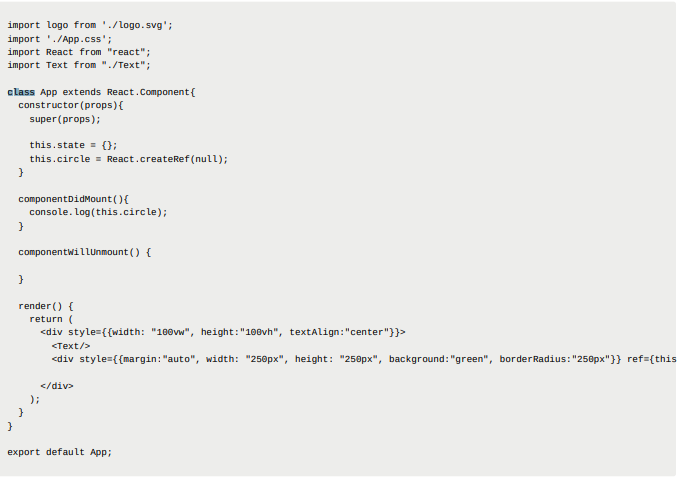
2가지방식으로 사용할수있으며 이를 클래스형 컴포넌트와 함수형 컴포넌트라고 합니다
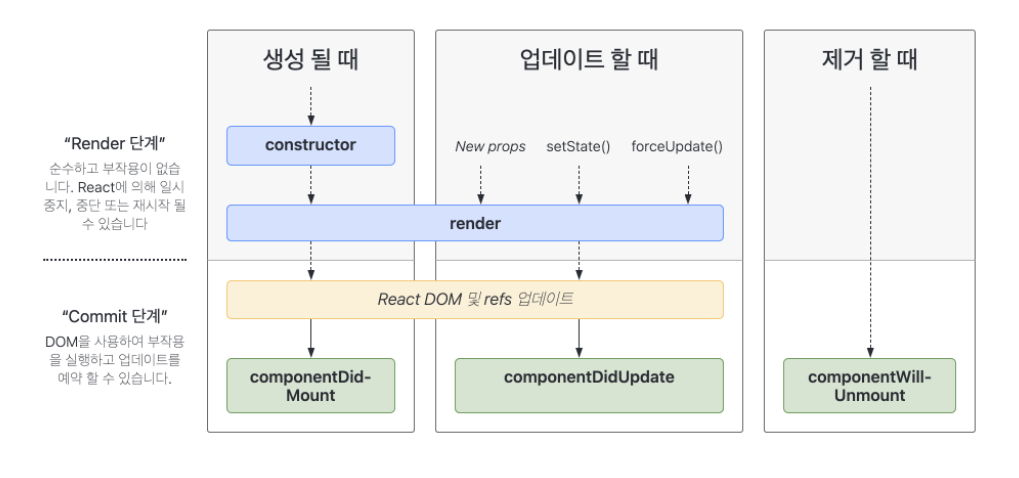
 

라이프사이클 생명주기

클래스형은 위와같이 작성하며  라이프 사이클의 생명주기와 동일하게 작성해야합니다

함수형은 위와같이 작성하고 라이프사이클 생명주기와 같은 방식을  사용하기 위해 리액트 훅을 사용합니다


클래스형은 

  • state, lifeCycle 관련 기능사용 가능하다.
  • 메모리 자원을 함수형 컴포넌트보다 조금 더 사용한다.
  • 임의 메서드를 정의할 수 있다.

함수형은 

  • state, lifeCycle 관련 기능사용 불가능 [Hook을 통해 해결 됨]
  • 메모리 자원을 함수형 컴포넌트보다 덜 사용한다.
  • 컴포넌트 선언이 편하다.

함수형이 클래스보다 후에 나왔기 때문에 더 편한 것은 사실이며 그러나 과거 클래스 컴포넌트를 사용하는  프로젝트도 있어 유지보수를 위해 사용방법을 알아 두어야한다


리액트 훅이란?

Hooks 는 리액트 v16.8 에 새로 도입된 기능이다.

함수형 컴포넌트에서도 상태 관리를 할 수 있는 useState

렌더링 직후 작업을 설정하는 useEffect 등의 기능 등을 제공한다

라이프 사이클 메서드가 필요할 때에는 클래스형 컴포넌트를 사용해야했지만 6버전으로 올라오고 훅이 나온뒤부터 함수형 컴포넌트로 많이 사용하고있다


클래스형에서 함수형으롷 넘어오는 이유는 


클래스형 컴포넌트는 로직과 상태를 컴포넌트 내에서 구현하기 때문에 상대적으로 복잡한 UI 로직을 갖고 있는 반면,

함수형 컴포넌트는 state를 사용하지 않고 단순하게 데이터를 받아서(props) UI에 뿌려준다. Hook들을 필요한 곳에 사용하며 Logic의 재사용이 가능하다는 장점이 있어 함수형 컴포넌트+Hook을 주로 사용한다고 한다.

'프로그램 시작후 각 주차 정리' 카테고리의 다른 글

프로그램 6주차  (0) 2022.04.17
프로그램 5주차  (0) 2022.04.10
프로그램 3주차  (0) 2022.03.27
프로그램 2주차  (0) 2022.03.20
프로그램 알고리즘문제풀이  (0) 2022.03.18

+ Recent posts